
Main steps:
- Enable activity completion.
- Set activity completion.
- Set course completion.
- Add a certificate activity.
- Cleanup by removing empty topics.
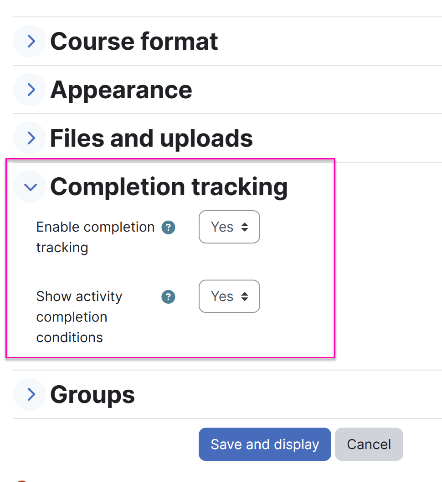 Enable Activity Completion.
- From the course, click Settings at the top (under the course title).
- Scroll down to the Completion tracking section.
- Ensure both are marked Yes.
- Save.
This allows the learner to see what is expected of them and allows you to set course completion (which triggers the certificate).
Set Activity Completion.
- From the course, turn on Edit mode.
- Click the 3 dots on the right of the activity.
- Select Edit settings from the drop-down.
- Scroll down to Grade.
- Click the checkbox and choose the grade settings—whatever makes sense for the activity. If the Interplay Learning activity includes a quiz or exam, determine the grade to pass.
- Scroll down to Completion conditions.
- Click Add requirements.
- Click Receive a grade.
- Click Passing grade. (Note: Do not click View the activity, it’s redundant. If the learner passed the quiz/test, then you know they viewed it.)
- Save.
Set Course Completion.
Once course completion is set, it is best not to change it. Changing course completion will delete everyone’s completion status and date so only set course completion when the course is ready.
- From the course, click More at the top (under the course title).
- Select Course completion from the drop-down.
- Expand Condition: Activity completion.
- Click the checkbox for External tool.
- Save.
Add Certificate.
- Click Add an activity or resource (turn on Edit mode if it’s not already).
- Select Custom certificate.
- Expand Condition: Activity completion.
- Name it and determine the settings under Options.
- Under Restrict access, click Add restriction.
- Select Course completed.
- Choose Yes from Course completed drop-down.
- Save.
- Now you’re ready to customize the certificate.
- Click the 3 dots on the right of the activity and select Edit settings.
- Click Edit certificate.
- Click Add element.
- Upload a background image and then save.
- Return to where you were and use the drop-down next to Add element to add the next element you would like on the certificate, such as completion date, name, etc.
- When all of the elements have been added, they can be repositioned.
If you have a certificate sample, I’m happy to do this part (or any of the parts in the document). Once a certificate is created, it can be imported into other courses so most of the set-up is done.
Want a copy to keep for yourself? Download the Word document below.
Need help? Submit a [Support Ticket] for assistance.